

Module 1 – Configure Computer to Use The Portal

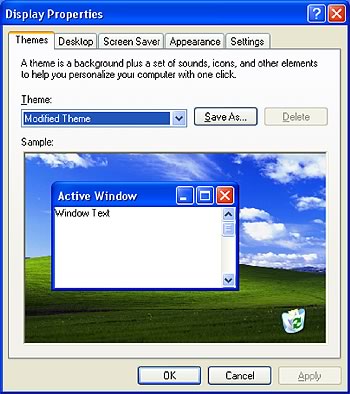
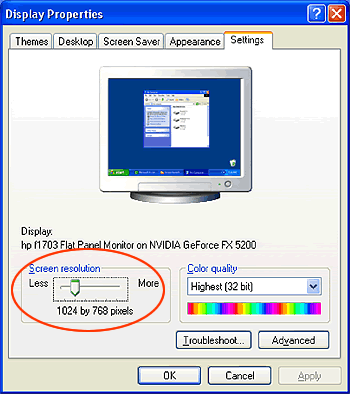
Configure Computer to Use The PortalThe portal is best viewed at 1024×768 pixel screen resolution or better. For best results, you should change your monitor to this screen resolution. To do so: Windows Users1. Locate your computer’s desktop and right click. The Display Properties dialog will appear. 2. Click the Settings tab. 3. Locate the Screen resolution slider. Drag the slider so that it
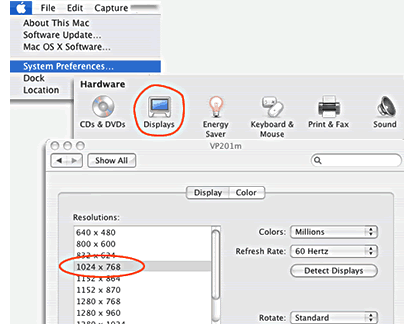
is set to 1024×768 pixels. 4. Click OK. Your monitor resolution will change to 1024×768 pixels, suitable for using the portal. 5. Note that in rare cases you will not be allowed to change your screen resolution due to your organizations computer policy. In this case you will need to contact your systems administrator and request that you be allowed to change your screen resolution. If you are not allowed to change your screen resolution, your portal experience will be less than optimal, though you will be able to navigate the portal. Mac Users1. Currently USAID does not support the Macintosh environment. However the portal is known to work well in Apple Macintosh OSX, using the Safari 2+ or Mozilla/Firefox 1+ – web browsers. 2. Set your Macintosh monitor resolution to 1024×768 Pixels, or higher.
Question: The portal still does not look right. What can I do?You may be using an older web browser that does not support Cascading Style Sheet (CSS) technology. Try upgrading to a newer browser (Internet Explorer 5+, Safari 2+, Mozilla/Firefox 1+) and see if that solves the problem. If it still does not, email the portal administrator at [email protected] for assistance. |
 |
 |