

NMO Module 4 – Email Content

Email ContentTip: Whenever you add content to the portal, private or public, you can send an email alert with the added content page to a colleague (or yourself). This email notification can quickly bring attention to the content or act as a reminder to yourself that the content you are working on is inside a certain area in the portal. You can add the sent email (page) to your Favorites area for future reference. Email Content1. To email a page, locate the email icon , at the top right of the page content area. 2. Click the
3. In the Send to field, enter the email address of the person you wish to send the content to. 4. In the From field, your email address should be pre-entered. Check that it is correct. If it is not correct you should update your account preferences. See the section on setting preferences for information on how to do this. 5. In the Comment field, enter any text that describes what you are sending. This will be the body of the email message. 6. Click the send button. The email will be sent to the address that you specified. Create an Email Link
|
 email icon. You are taken to the Send this page to somebody screen.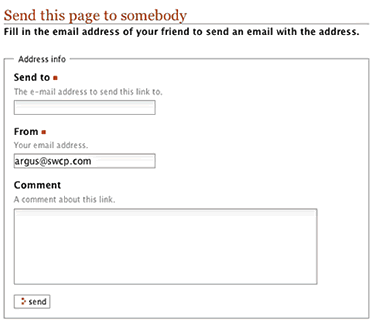
 |
 |