

NMO Module 3 – Set Preferences
Set Preferences1. To set your user preferences first Login to the portal. 2. In the orange global preferences bar just beneath the tabs are several
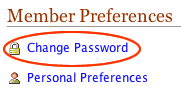
links. Click the Preferences link. Change your Password1. Note that if you change your password, and forget your username, your password will not be able to be retrieved, and will need to be reset by the portal administrator. For the purposes of this exercise, it would be best if you chose not to change your password at this moment, as if you do so incorrectly, you may not be able to continue with this procedure immediately. 2. Under Member Preferences click the Change Password link. 3. Note that passwords are case sensitive and literal. If you change your password to “MyPassword” that is exactly what you MUST type, including the uppercase letters. The most common cause of a password not working is that your Caps Lock key is on by mistake. Passwords:
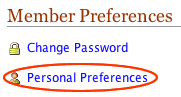
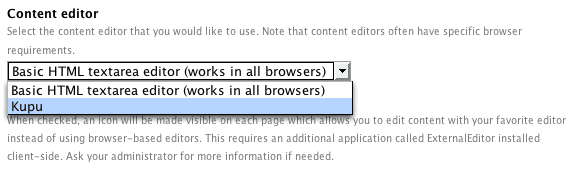
Good practice is to use a nonsense or random word for your password. Your name is a very insecure password, as is any single word that can be found in a dictionary. Such passwords can easily be guessed, and your security on the portal compromised. 4. In the Current password field enter your current password. You must type your current password exactly. 5. In the New password field enter your new password. Password must have a minimum of five characters. 6. In the Confirm password field re-enter the new password. Make sure the confirmed password is identical to the new password. 7. Click the Change password button. Your new password is activated. Your old password is no longer active. 8. Click the home tab to exit Preferences Change your Personal Preferences1.Under Member Preferences click the Personal Preferences link. 2. Your Full Name is listed first. If it is incorrect, you may correct it here. This is required information. 3. Your Email Address is listed. It is important that your email address be correct. If it is not, correct it here. This is required information. 4. Your Location is where you are located. This is optional information 5. Your Biography is a short overview of who you are and what you do. This information will be displayed on the your author page, linked from the items you create. This is optional information. 6. Your Home Page is the URL to your home page, if you have one. It should be in standard URL format, http://www.rmportal.net for example. This is optional information. 7. You may select a Content Editor for editing page content. It is suggested that you choose Kupu from the dropdown menu, unless you know HTML. Kupu allows you to edit content in a text editor similar to Wordpad or a simplified Microsoft Word. 8. We suggest you leave Enable External Editing unchecked. Contact the portal administrator for more information on external editors that you can use. 9. If Listed in searches is checked, your name will be listed when someone searches for it. If this item is unchecked, you will not be listed in searches. Choose your preference by checking or un-checking this box. 10. Portrait is
an optional picture of yourself (or an image that you feel represents you)
that you can upload. Portrait images should be 75 pixels wide by 100 pixels
tall, and should be in .jpg or .gif image file format. You can use a digital
camera or scanner to capture your portrait, and resize it using photo-editing
software like Photoshop. 11. Click the Save button at the bottom of the page to save your preferences. If you do not click Save, your preferences will not be saved. 12. Click the home tab to exit Preferences. |


 |
 |